
This comprehensive guide will walk you through the entire registration process for the cBiZ Digital Business Platform, from initial signup to completing your account setup. The registration process is designed to be straightforward while capturing all the essential information needed to set up your business account effectively.
Table of Contents
Getting Started with Your Free Trial
Selecting Your Business Package
Business Information Registration
Getting Started with Your Free Trial
To begin your journey with cBiZ, navigate to the official website at https://cbiz.onl/. The homepage presents you with an overview of the platform's capabilities, highlighting how it can transform your business operations through digitization, enhanced efficiency, and streamlined payment processing. The landing page showcases the platform's key value propositions, emphasizing its ability to help businesses digitize processes, accept payments effortlessly, build customer relationships, and grow both online and in-store operations.
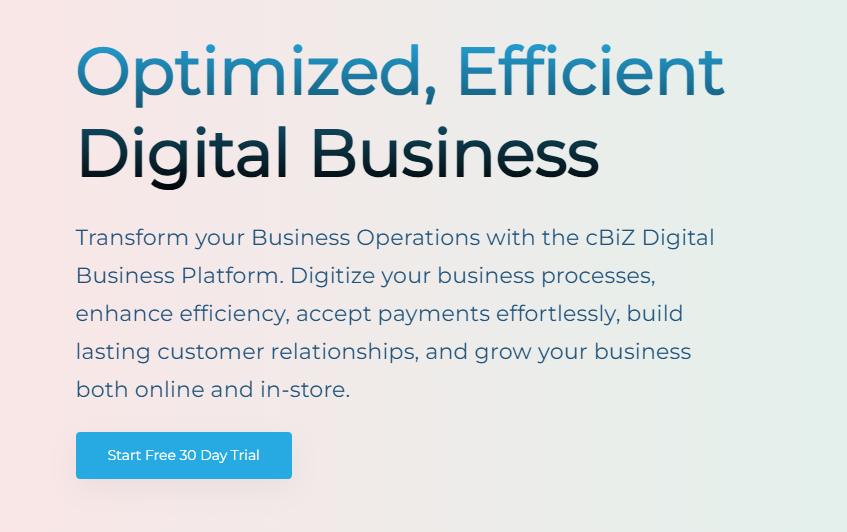
On the main landing page, you'll find the prominent call-to-action button labeled "Start Free 30 Day Trial" displayed in bright blue. This button serves as your entry point to accessing all of cBiZ's powerful business management tools. The trial offer allows you to explore the platform's full capabilities without any initial commitment, making it an ideal way to evaluate whether the system meets your business needs.
Selecting Your Business Package
After clicking the trial button, you'll be directed to the packages page where you can choose the plan that best fits your business requirements. The platform offers three distinct tiers designed for different business scales and operational needs.
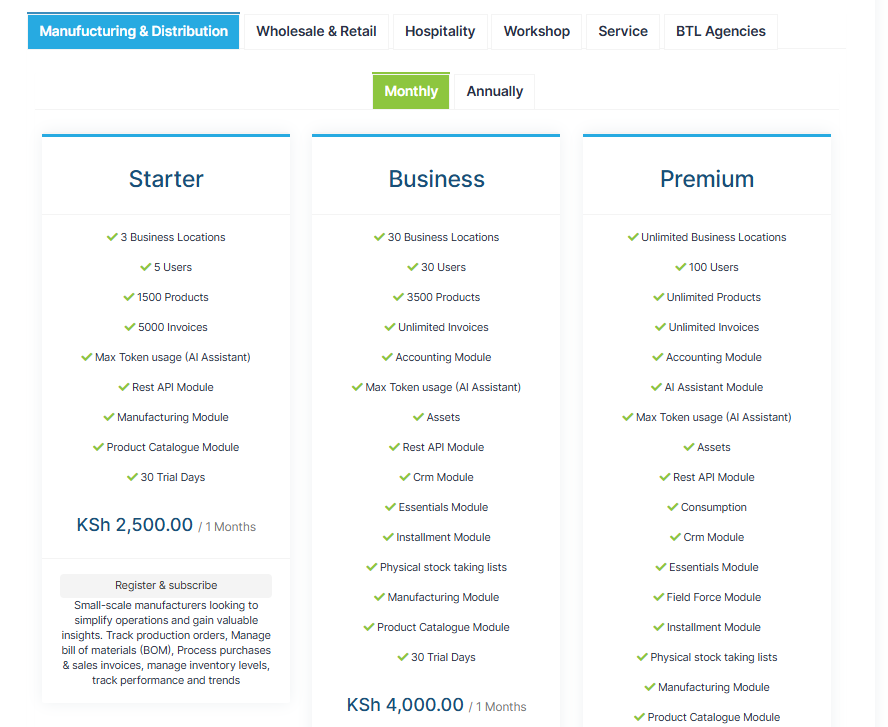
The package selection interface provides several important options to consider:
- Business Type Categories: Choose from Manufacturing & Distribution, Wholesale & Retail, Hospitality, Workshop, Service, and BTL Agencies
- Billing Frequency: Toggle between Monthly and Annually billing options using the green toggle switch
- Package Comparison: Review features across Starter, Business, and Premium tiers side-by-side
The three main packages offer progressively enhanced capabilities. The Starter package accommodates smaller operations with up to 3 business locations, 5 users, and support for 1,500 products. It includes essential features like the Max Token usage AI Assistant, Rest API Module, Manufacturing Module, and Product Catalogue Module.
The Business package scales significantly to support 30 business locations with 30 users and 3,500 products. This tier adds unlimited invoices, an Accounting Module, and Assets management capabilities. The Premium package removes most limitations entirely, offering unlimited business locations, 100 users, unlimited products and invoices, plus advanced features like the full AI Assistant Module and comprehensive asset management tools.
Once you've reviewed the features and selected your preferred package, click the "Register and Subscribe" button beneath your chosen plan to proceed with the registration process.
Business Information Registration
The registration process begins with a three-step wizard interface designed to capture your business details systematically. The first step focuses on collecting essential business information that will form the foundation of your account setup.
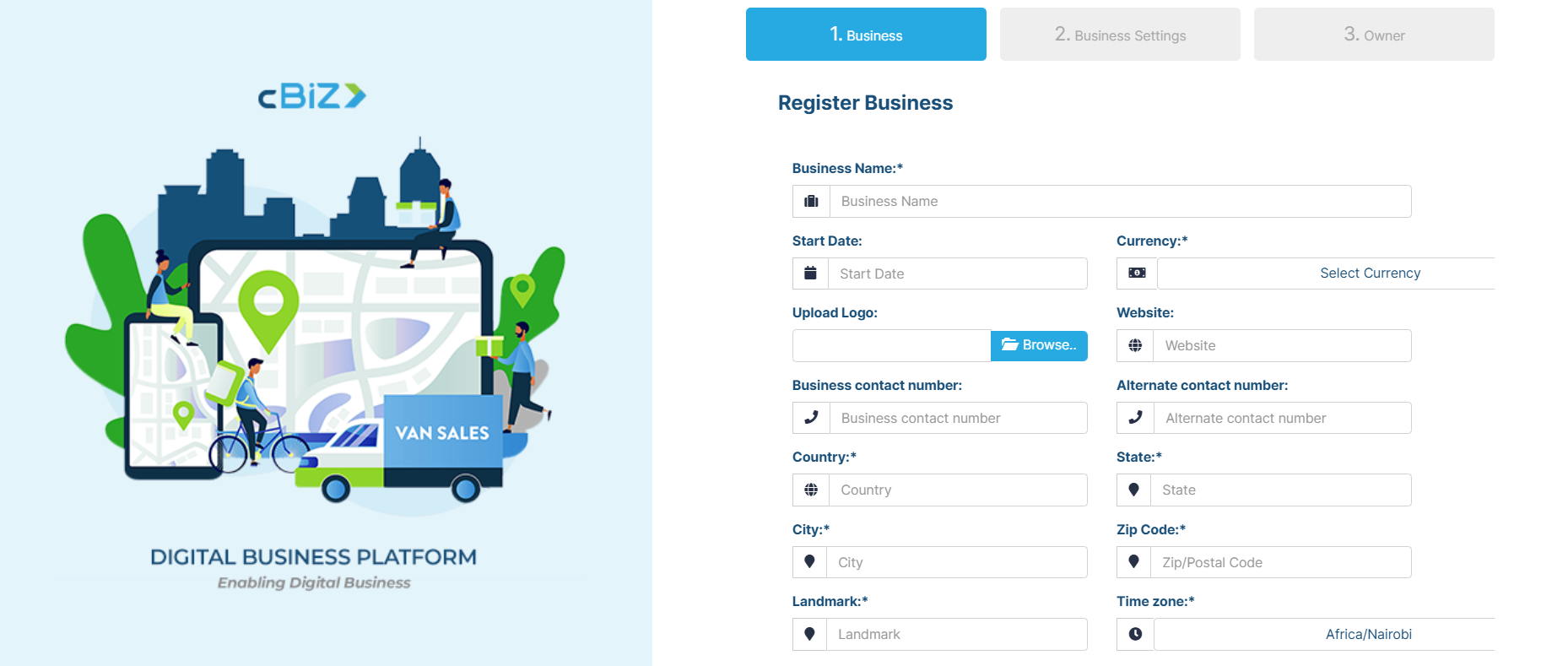
The business registration form presents a clean, professional interface featuring the cBiZ logo alongside an illustrative graphic depicting digital business concepts. The form organization includes several categories of information:
Basic Business Details
- Business Name: Enter your official company name as it appears on legal documents
- Start Date: Specify when your business began operations using the date picker
- Currency: Select your primary operating currency from the dropdown menu
- Website: Provide your business website URL to link your digital presence (if you have one)
Contact Information
The platform requires both primary and backup communication channels to ensure reliable connectivity:
- Business Contact Number: Your main business phone line
- Alternate Contact Number: A secondary contact for backup communication
Location Details
Complete geographical information is essential for proper account configuration and regional settings:
- Country: Select your business location from the comprehensive dropdown list
- County: Specify your county.
- City: Enter your business city name
- Postal Code: Provide your postal code
- Landmark: Add a recognizable landmark near your business location for reference
The Time Zone selection is significant as it affects all time-sensitive features within the platform, including scheduling, reporting, and automated processes. The interface shows Africa/Nairobi as the default selection, but you can modify this to match your actual location.
If you already have an existing account, you can use the "Already registered? Sign In" link at the bottom of the form. After completing all required information, click the "Next" button to advance to the business settings configuration phase.
Configuring Business Settings
The second step in the registration process addresses tax and financial configurations that are crucial for proper business operations and regulatory compliance. These settings will govern how your business transactions are processed, reported, and managed within the system.
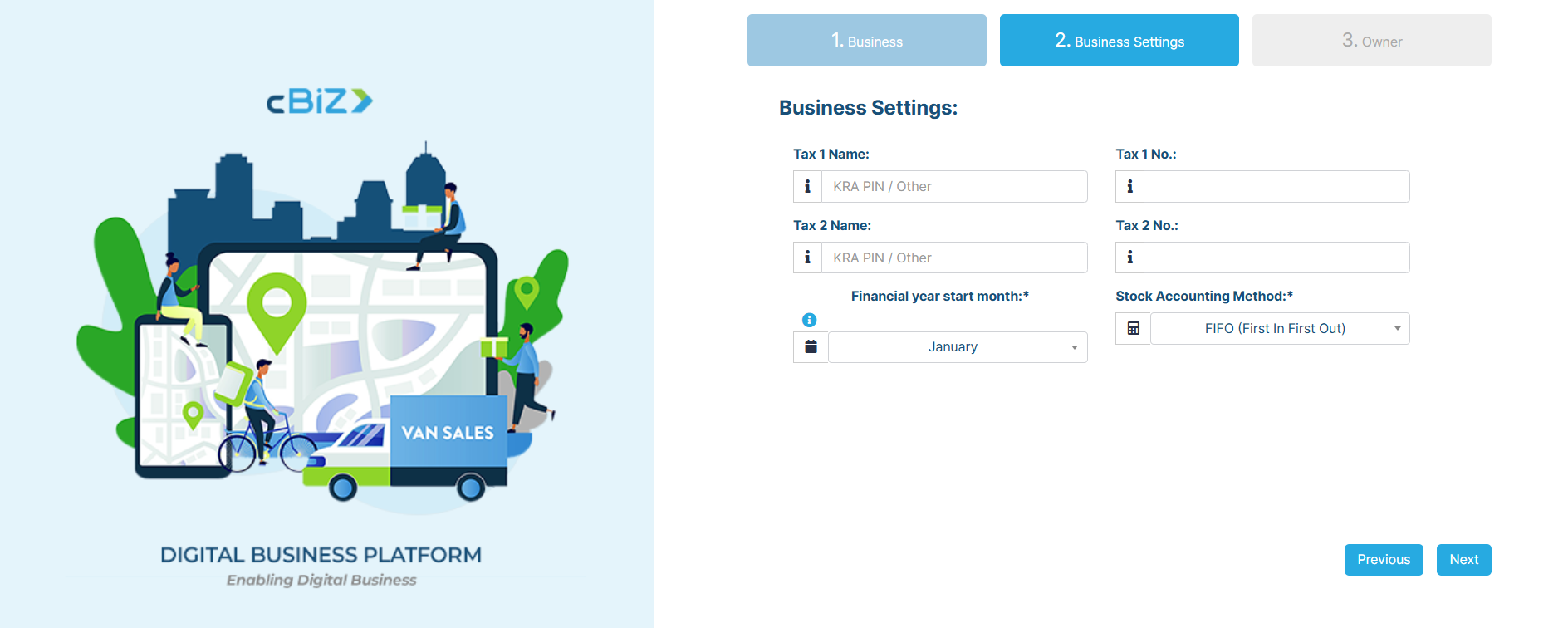
The Business Settings page maintains the three-step process navigation, with step 2 highlighted in blue to indicate your current progress. This section focuses on several critical areas:
Tax Registration Information
Most businesses require proper tax identification for compliance purposes:
- Tax 1 Name: Enter your primary tax registration type (such as KRA PIN or other local tax identifiers)
- Tax 1 Number: Provide the actual identification number for your primary tax registration
- Tax 2 Name: For businesses with multiple tax obligations, specify your secondary tax registration
- Tax 2 Number: Enter the corresponding number for your secondary tax registration
This dual tax system accommodates businesses operating across different jurisdictions or those subject to multiple tax authorities, ensuring comprehensive compliance coverage.
Financial and Accounting Configuration
The platform requires specific settings to align with your business's financial practices:
- Financial Year Start Month: The dropdown defaults to January, but you can modify this to match your specific accounting calendar or regional business practices
- Stock Accounting Method: Choose your preferred inventory valuation method, with FIFO (First In First Out) shown as the default option
The Stock Accounting Method selection is significant as it affects how inventory costs are calculated and reported throughout the system. Other standard options typically include LIFO (Last In First Out) and weighted average methods, depending on your business requirements and local accounting standards.
After completing all business settings accurately, click the "Next" button to proceed to the final registration step.
Owner Information and Account Creation
The final step in the registration process captures the personal details of the business owner and establishes the secure login credentials for your cBiZ account. This step is crucial for account security and proper business ownership verification.
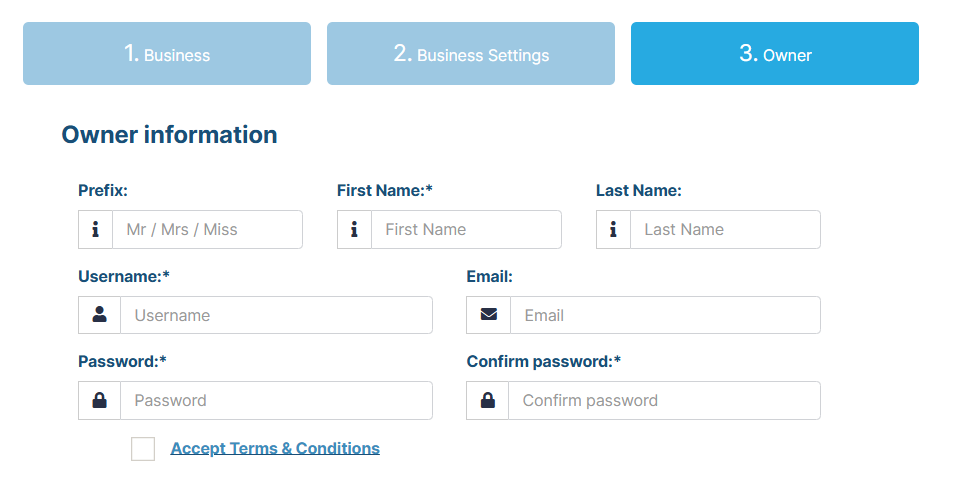
The Owner Information page represents the completion phase of your registration journey, with step 3 highlighted in blue across the top navigation. This comprehensive form addresses several vital areas:
Personal Identification
Begin by establishing your personal identity within the system:
- Prefix: Select your appropriate title (Mr, Mrs, Miss) from the dropdown menu
- First Name: Enter your legal first name as it appears on official documents
- Last Name: Provide your legal surname to complete your identification
Account Credentials and Security
Creating secure access credentials is essential for protecting your business information:
- Username: Choose a memorable username that will serve as your primary login identifier
- Email: Provide an accurate email address for account verification, password resets, and platform communications
- Password: Create a strong password following security best practices
- Confirm Password: Re-enter your password to ensure accuracy and prevent future login issues
The password creation process should follow standard security guidelines, including the use of uppercase and lowercase letters, numbers, and special characters to ensure maximum account protection.
Final Agreement and Registration
Before completing your registration, you must acknowledge your understanding and acceptance of the platform's terms:
- Terms & Conditions Checkbox: Review and accept cBiZ's service terms and usage policies by checking the corresponding box
This agreement ensures you understand the platform's terms of service, privacy policies, and usage guidelines that govern your relationship with cBiZ.
Once all fields are completed accurately and you've accepted the terms and conditions, click the blue "Register" button to finalize your account creation. The system will process your information, validate the details provided, and establish your cBiZ Digital Business Platform account.
Post-Registration Next Steps
After successful registration, the system immediately begins the account activation process. You'll receive a confirmation message in your registered email inbox containing important account details and activation instructions. This email serves as your official welcome to the cBiZ platform and includes essential information for getting started with your new business account.
Once your account is activated, you can proceed to sign in to your newly created cBiZ account using the credentials you established during registration.
Accessing Your Account
To begin using the platform, navigate to the login page where you'll use your registration credentials to access your business dashboard.

The login interface maintains the same professional design as the registration process, featuring the cBiZ branding and the "DIGITAL BUSINESS PLATFORM - Enabling Digital Business" tagline. The sign-in form includes:
- Username Field: Enter the username you created during registration
- Password Field: Input your secure password, with an eye icon to toggle password visibility
- Remember Me Checkbox: Option to save your login credentials for future sessions
- Forgot Password Link: Recovery option if you need to reset your password
After entering your credentials, click the blue "Login" button to access your dashboard. If you encounter any issues or need to create a new account, you can use the "Don't have an account yet? Sign Up" link at the bottom of the form.
Initial Platform Tour
Upon successful login, the cBiZ platform automatically launches a guided tour to help new users navigate the system effectively. This interactive walkthrough appears as a popup overlay on your dashboard and introduces you to essential features and functions.
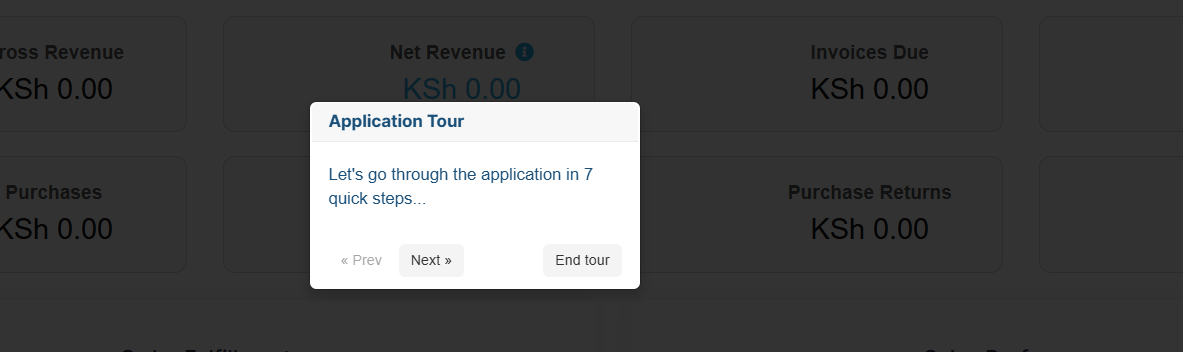
The tour interface presents a clean, focused approach to onboarding with the following elements:
- Tour Title: "Application Tour" clearly identifies the purpose of the popup
- Step Counter: Shows your progress through the tour with "Let's go through the application in 7 quick steps..."
- Navigation Controls: Previous and Next buttons allow you to move through the tour at your own pace
- End Tour Option: Provides the ability to skip or exit the tour if needed
The comprehensive 7-step tour covers several important areas:
- Dashboard Overview: Introduction to your main control panel, key metrics, and financial summaries
- Navigation Menu: Explanation of primary sections and how to access different modules
- Core Features: Walkthrough of essential tools like inventory management, invoicing, and customer management
- Revenue Tracking: Understanding financial metrics like Gross Revenue, Net Revenue, and Invoices Due
- Purchase Management: Overview of purchase tracking and purchase returns functionality
- Settings Configuration: Guide to personalizing your account preferences and business settings
- Support Resources: Information about accessing help documentation and customer support
The tour provides context-sensitive guidance, highlighting specific dashboard elements as it progresses through each step. You can navigate through the tour using the "Next" and "Prev" buttons, or end the tour early if you prefer to explore the platform independently.
Your 30-day free trial period begins immediately upon first login, giving you ample time to evaluate the platform's capabilities and determine how it can best serve your business optimization needs. During this trial period, you'll have access to customer support resources, comprehensive documentation, and can always restart the guided tour system to help maximize your platform utilization.
The registration and initial setup process is now complete. With your account activated, login credentials working, and the guided tour providing essential orientation, you can begin leveraging cBiZ's digital tools to transform and streamline your business operations through automation, enhanced efficiency, and improved customer engagement capabilities.
Need Help Getting Started?
Our dedicated support team is here to ensure your success. Whether you have questions about specific features, need assistance with setup, or want to explore advanced functionality, we're committed to helping you maximize your cBiZ experience.
Remember, every successful business transformation begins with a single step – and you've already taken it. Welcome to the future of digital business management with cBiZ!
Start exploring your dashboard today and discover how easy it can be to manage your entire business from one powerful platform.